
Script create/edit
- Basic
- ✅
- Pro
- ✅
Plans
Start with Basic, then move to Pro when your workflow needs bidirectional sync, AI-controlled playtest, and a broader advanced action surface.
Plan comparison
Choose the level of sync, validation, and advanced workflow coverage that matches how you build.
| Capability | Basic | Pro |
|---|---|---|
| Script create/edit | ✅ | ✅ |
| Instance create/delete/move | ✅ | ✅ + bulk operations |
| Property read/write | ✅ | ✅ + bulk changes |
| Selection, tags, search | ✅ | ✅ |
| Camera control | ✅ | ✅ |
| Log monitoring | ✅ | ✅ |
| Luau code execution | ✅ | ✅ |
| Project sync | Studio → Local one-way | Bidirectional + per-type direction/mode |
| Multi-place sync | — | Up to 3 Places simultaneously |
| Change history | — | Track changes before applying |
| Playtest control | — | Play / stop / pause / resume + automated tests |
| Terrain generation/editing | — | Block, ball, cylinder, wedge, material replace |
| Asset search/insert | — | Search Roblox marketplace and insert directly |
| Spatial analysis | — | Raycast, find ground, collision checks |
| Environment control | — | Lighting, atmosphere, sky, time of day |
| Audio / Animation | — | Sound playback, animation load/play |
| AI token efficiency | Per-action calls | Fewer calls with bulk actions |
Why Pro
The upgrade should feel like a workflow upgrade, not just a feature unlock.
Pro Sync keeps Studio and local files moving in both directions, with per-type direction and apply mode controls that balance speed and control.
Pro lets AI run Studio playtests, inject test scripts, collect logs, and verify changes as part of the build loop.
Pro unlocks bulk operations, terrain generation, asset search, spatial analysis, environment control, audio, and animation beyond the core workflow.
FAQ
Use this page to check purchase, activation, and the real Basic vs Pro difference at a glance.
You only need to activate once in either the plugin or the dashboard. Both share the same local MCP license state.
Basic covers the core MCP workflow for scripts, instances, properties, selection, tags, camera, and logs.
Bidirectional sync, per-type direction and apply mode, change history, multi-place sync, playtest control, and the wider advanced tool surface.
Yes. The GitHub docs continue with the Pro upgrade guide and deeper feature references.
Activation guide
Buy the Pro license on Gumroad, then activate it once in either the plugin or the dashboard.
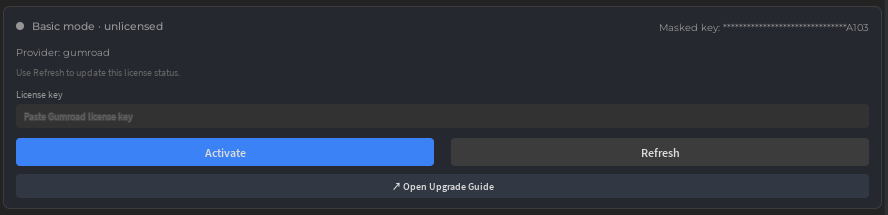
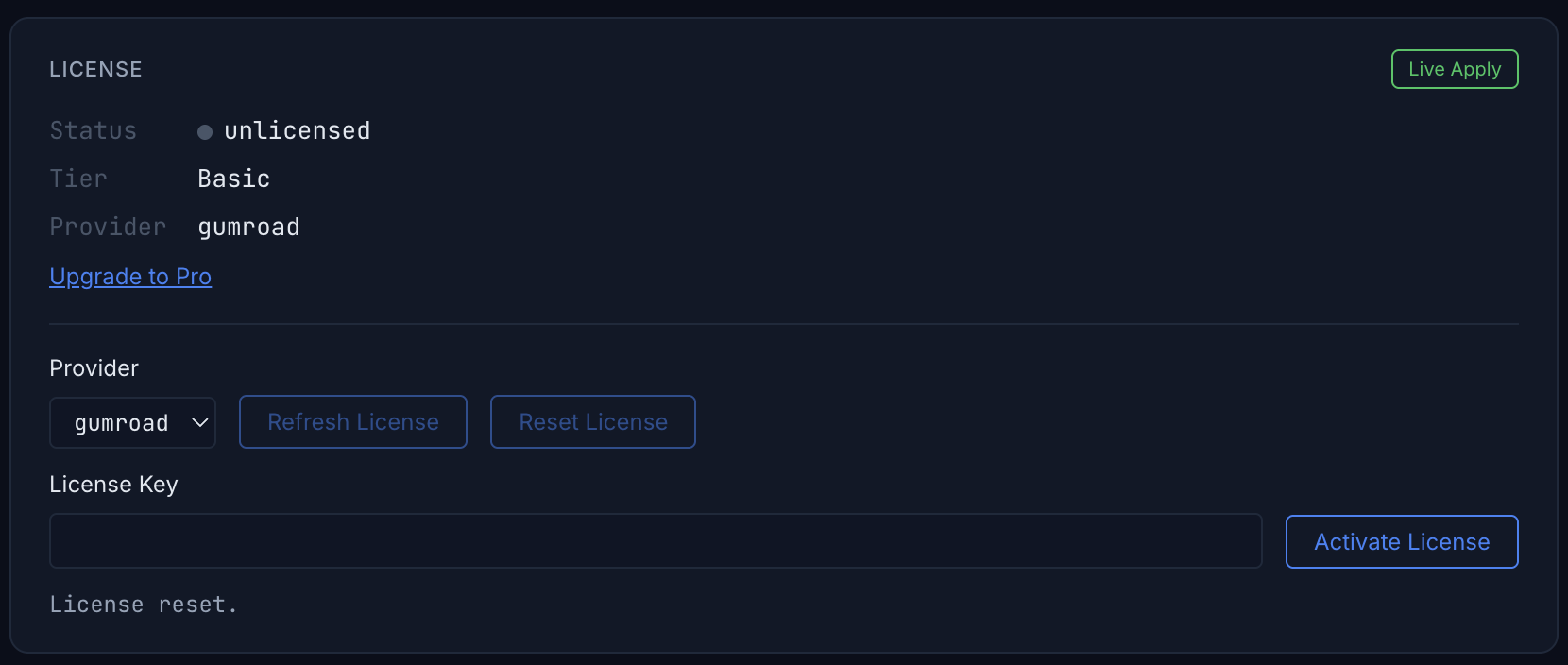
The plugin and dashboard share the same local license state. Activating in one place is reflected in the other. When the status shows active or grace, Pro features are available.