
Agents build, you stay in control.

WROX connects AI agents such as Claude Code, Codex, Gemini, and Antigravity to a live Roblox Studio session so they can directly run script, instance, terrain, lighting, and asset work. You can track progress and results in real time through Explorer and Dashboard.

  • Studio control Direct Roblox Studio control
  • Bi-directional sync Multi-place sync
  • Playtest Automated verification loop
  • Dashboard Real-time monitoring
  • Explorer VS Code · Antigravity integration extension

YouTube demo

See it in a real demo video.

The demo video shows the real process of turning a natural-language request into an executable Roblox Studio action.

Open on YouTube

WROX MCP

MCP

Provides an MCP toolset that lets AI agents control Roblox Studio directly.
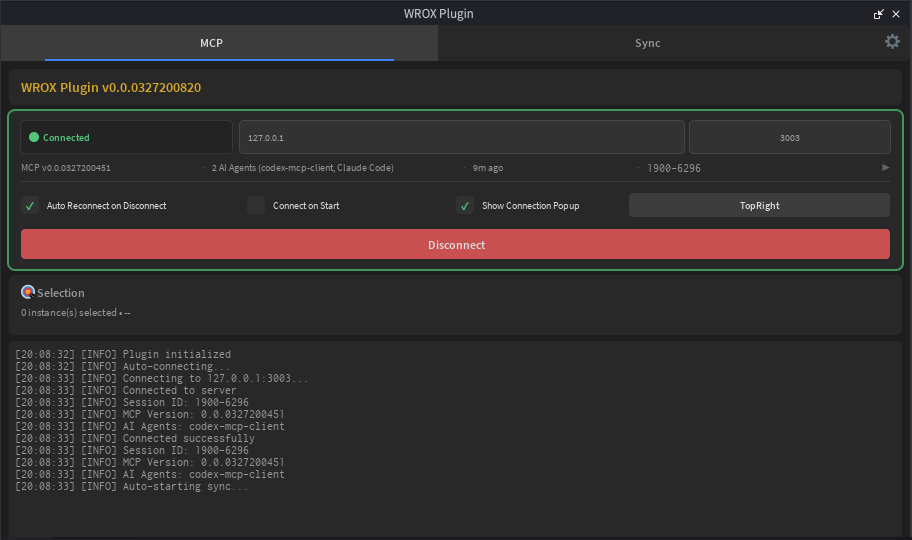
  • Call more than 140 major Roblox Studio APIs directly through MCP tools.
  • Use code generation to reach nearly any Roblox Studio API call.
  • Run playtests in Studio and collect logs so AI can finish verification after changes.
MCP tool surface overview showing available Roblox Studio API tools.

WROX Plugin

Plugin

Keeps the studio plugin at the center and connects instance, script, terrain, and asset workflows directly.
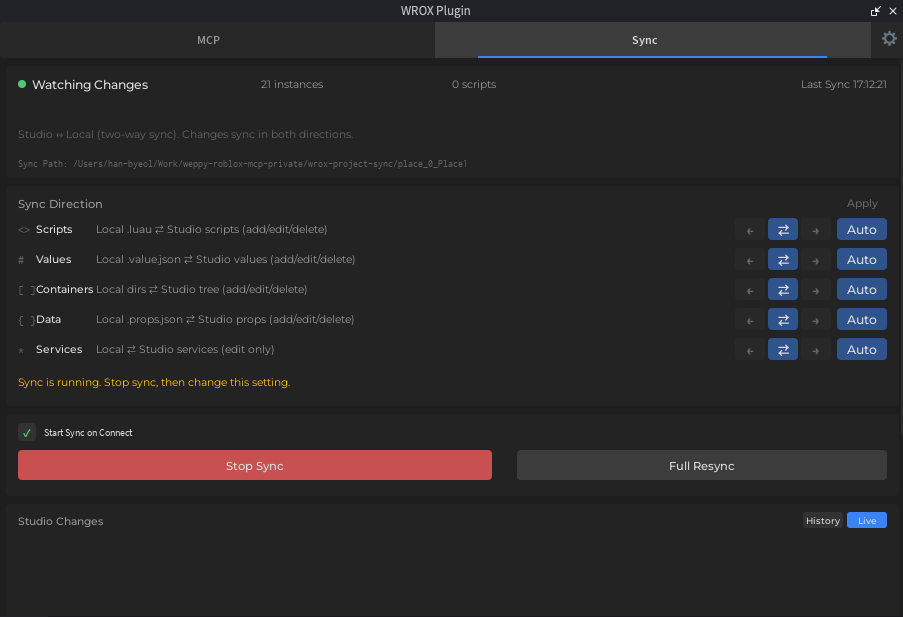
  • Automatically reconnects when the MCP server and Studio plugin are disconnected, so work keeps flowing.
  • Automatic sync on file changes keeps Studio and the local project aligned.
  • Detects and manages concurrent edits so you can merge safely.
WROX Plugin panels open inside Roblox Studio.

WROX Explorer

Explorer

Shows how a synced Explorer surfaces project structure and makes large edit flows easier to manage.
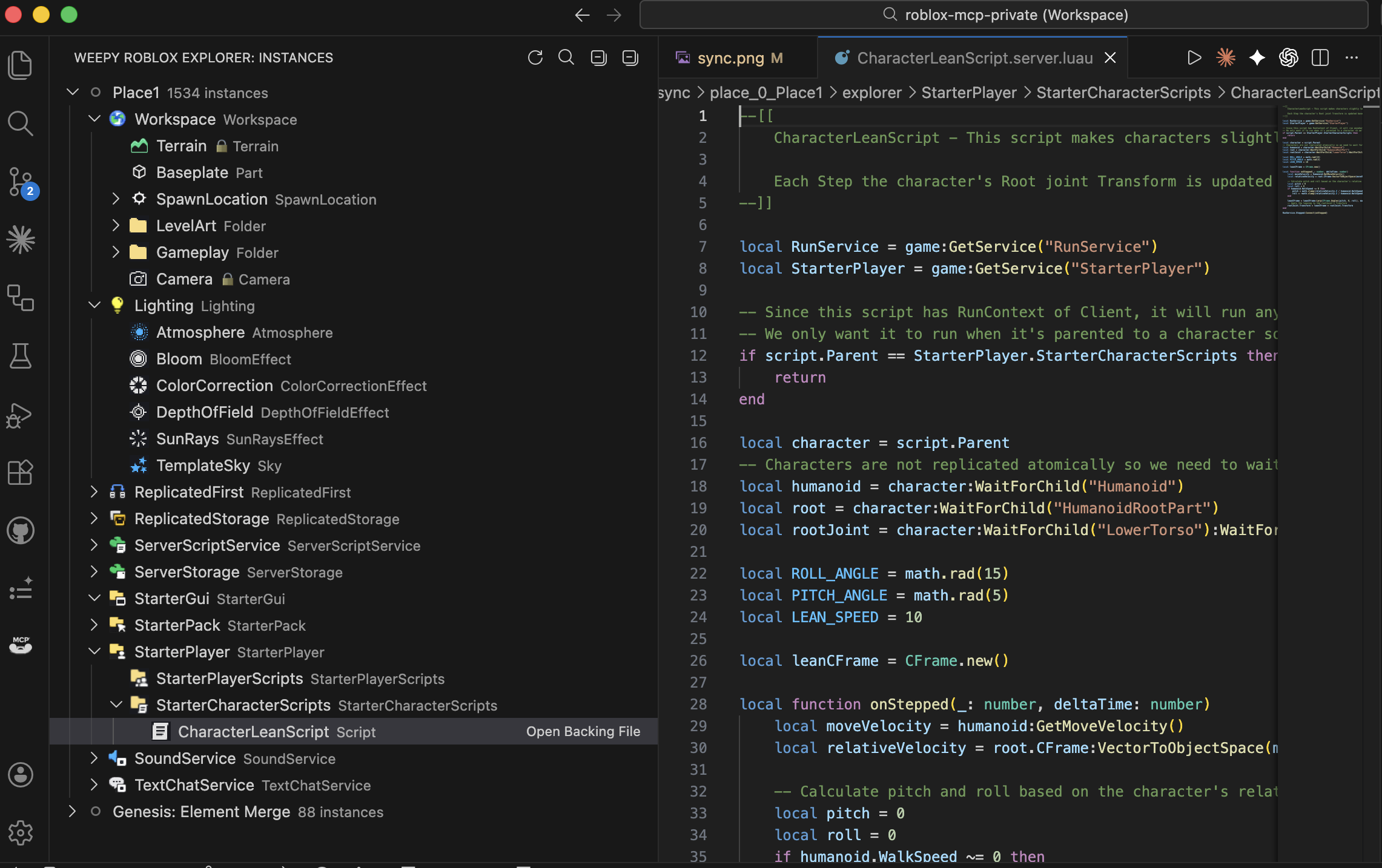
  • Edit scripts directly in VS Code with bi-directional sync and see them reflected in Roblox Studio immediately.
  • Changes made in Studio also sync back into the VS Code project so it stays current.
  • Browse and manage the hierarchy of multi-place projects from VS Code at a glance.
Roblox Explorer extension showing a synced Roblox Studio hierarchy inside VS Code.

WROX Dashboard

MCP Dashboard

Makes tool usage, monitoring, and verification status visible at a glance with MCP Dashboard.
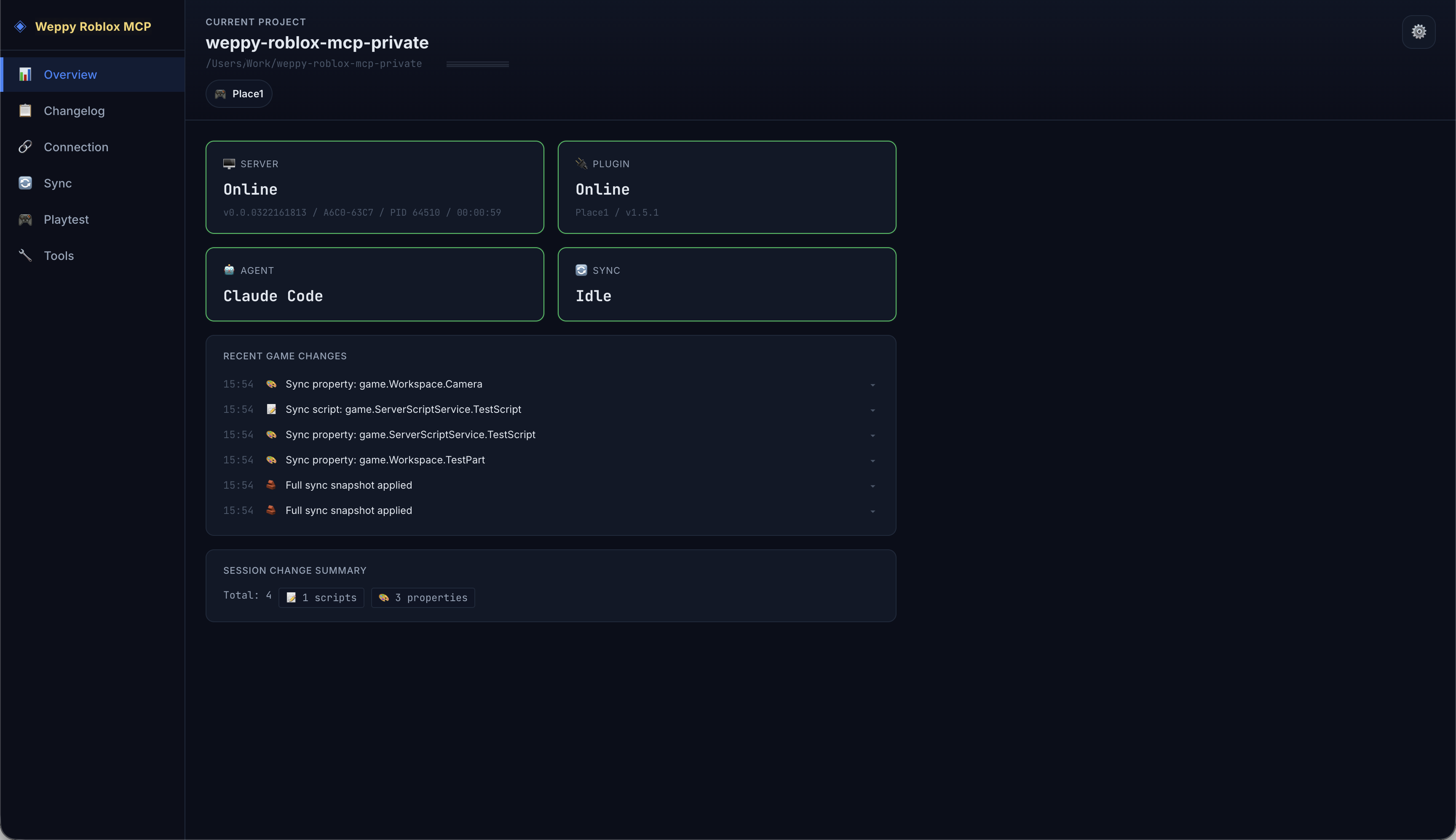
  • Check server, plugin, and agent connection status in one place.
  • Track tool usage, recent changes, sync activity, and playtest output in a single screen.
  • Review what changed in history and move on to the next iteration.
MCP Dashboard overview showing connection status, recent changes, and activity panels.

Capability catalog

AI builds and changes, you verify.

AI agents create and modify in Studio, while you review results and set direction. WROX connects this flow with sync, environment control, playtest, and monitoring.

Instances & Properties

Search, clone, rename, tag, and batch-edit properties across the live DataModel.

  • Instance changes
  • Property edits
  • Selection context

Scripts & Execution

Read, fix, create, and run Luau right away in a synced local context.

  • Script source edits
  • Dependency checks
  • Luau execution

Terrain & Environment

Control terrain, lighting, camera, and spatial queries as one prompt flow.

  • Terrain generation
  • Lighting control
  • Spatial queries

Assets & Effects

Handle marketplace assets, audio, animation, tween, and particle work in one session.

  • Asset search
  • Effect control
  • Animation and audio

Playtest & Validation

Run playtests, inject checks, and review logs to carry changes through validation.

  • Playtest control
  • Test injection
  • Log review

Sync & Monitoring

Mirror project state locally and track sync activity, change history, and multi-place status.

  • Bi-directional sync
  • Dashboard history
  • Multi-place visibility

Get started

One click to install, and you are ready to go.

Click Install and follow the guide — it only takes a minute.